Showing posts with label Reason 4. Show all posts

Tuesday, November 24, 2009

More Audio Effects

(Part 2 of a 2-part guest lecture by Quinn Gibson)


Parameters of the Redrum


Pitch- Effects how "Hi" or "Low" sounding a hit is


Velocity- Effects Softness & Loudness of particular hit


In addition to reverb and delay here are some other commonly used effects that will help you on your musical voyage. But first a quick vocab lesson.


Timbre: Also called shape. Two instruments can play the same note, but sound differently. Why is that? Because the timbre or shape is different.


Distortion- Alters original timbre or shape of sound.


megaton b-boy 2000


Mobb Deep - Shook Ones Part 2


Phaser- Filter & LFO ; Whirly

Bonita Applebum


Chorus/Flanger- Shimmering quality; Result of roughly same timbre & pitch being played at the same time.

Black Hole Sun


Is It A Crime


Appregiator- "Broken Chord"

Stop Running Away


Exercise 2

Create another 16-Bar Song

1) Create Redrum drum pattern using distortion and light reverb.


2) Next create a 4 bar melody using a synthesizer with a phaser or chorus effect. Duplicate tracks and Use same melody in last 8 bars of song using appregiator effect.


Audio Effects & Parameters:Reverb, Delay & the ADSR Envelope- An Electronic Love Story

(Part 1 of a 2-part guest lecture by Quinn Gibson)

So you have a catchy hook, a nice melody, and even an interesting song arrangement( verse, bridge, hook). However there is something else you can do to make your song sound more flavorful and interesting. Welcome to the wonderful world of effects & parameters (fireworks and drumrolls).


Parameters vs. Audio Effects


Audio Effect

*An additional "thing" that is added to process or transform original sound.


Parameters

* "Knobs" & "Sliders" that already come with a particular sampler or synthesizer, or effect. Tells the instrument or effect how to behave.


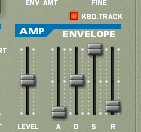
We'll first look at the parameter known as the ADSR Envelope. To my knowledge this is on every instrument based sampler and synthesizer in reason, but for this demonstration we'll be using the NN-19 digital sampler.


A.D.S.R. Envelope


Attack

How quickly the sound reaches full volume after the sound is activated (the key is pressed). For most

mechanical instruments, this period is virtually instantaneous. However, for some popular synthesized voices that don't mimic real instruments, this parameter is slowed down. Slow attack is commonly part of sounds called pads.


Decay

How quickly the sound drops to the sustain level after the initial peak.


Sustain

The "constant" volume at which the sound remains following the decay until the note is released. Note that this parameter specifies a volume level, not a time period.


Release

How quickly the sound fades when a note ends (the key is released). Often, this time is very short. An example where the release is longer might be a percussion instrument like a glockenspiel, or a piano with the sustain pedal pressed


I might be wrong-Radiohead


Reverb


Reverberation is the persistence of sound in a particular space after the original sound is removed. A reverberation, or reverb, is created when a sound is produced in an enclosed space causing a large number of echoes to build up and then slowly decay as the sound is absorbed by the walls and air.


* Causes effected instrument to have a spacious roomy feel.

* The original sound ceases but the reflection of the sound continues.


Reason has to types of reverb

-Digital Reverb

-Advance Reverb


Delay


*Used interchangeably with echo.

*Same sound repeated at different intervals of time until point of decay.


Dr.Octagon 3000


Exercise 1


*Create a 16 bar song with a melody and drum section.


-Utilize the ADSR Envelope on instrument sampler or synthesizer.

-Use Reverb on Redrum.

1) With the proper instrument highlighted in the instrument rack go to the Create menu and click the Digital Reverb.


-Use delay effect on last 8 bars of given sampler or synthesizer :


1) With the proper instrument highlighted in the instrument rack go to the Edit menu and click on "Duplicate devices and tracks".


2) Once this copy is created click on the duplicated device ,labeled "copy" on the side, and go to the Create menu and click the Digital Delay Line Effect.


Monday, October 5, 2009

Introducing Reason & Redrum (pt. 1)

For the first part of this class, we will mainly be using a software program called Reason. Reason is a program that gives you lots of different sounds to choose from and an easy way of building beats from scratch.

There are two main sections of the screen in Reason: the Instrument Rack and the Sequencer.

The Instrument Rack is the top part of the screen. This is where you can put all the different instruments you want to work with, such as drum machines, samplers and synthesizers. At the top of the Rack, you should always see a Mixer, which is where all the instruments get mixed together. If you don't see a Mixer, you might have to Create one.

instrumentrack.jpg

The Sequencer is where you actually lay down your tracks and record yourself playing.

sequence.jpg

Today we're going to jump right in and start making a beat. To do this, we will be working with an instrument called the Redrum Drum Computer. It looks like this:

redrummain.jpg

Don't get overwhelmed by all the knobs and stuff. It's actually really easy to use. For now, here's what you need to know...

Each one of these sections has a different drum sound in it. For example, Sound 1 might be a bass, Sound 2 a clap, Sound 3 a hi hat, etc. To hear what they are, click on the little triangle in the upper-right corner of each Sound.

When you want to start working with a sound, click on the SELECT button at the bottom of that section.

select.jpg

Now this is the section of the Redrum where you actually program your beat:

redrumsection.jpg

Just click on the little boxes and then hit the RUN button to hear it play back.

run.jpg

When you want to add another sound, click the SELECT button under that sound and then click on the boxes. You can keep adding sounds and going back and changing things as much as you want.

Another thing you should know about is Tempo. Tempo is the speed of a piece of music - how fast it's playing back. Tempo is measured in Beats Per Minute, or BPM.

In Reason, you can adjust the Tempo at the bottom of the screen.

tempo.jpg

Just find the number (it's usually 120 to start with) and click the up or down arrows next to it. Up makes the beat faster, down makes it slower.

Alright, are you ready to do this? Here we go...

Please do the following:

  1. Open Reason.
  2. Start a new session by going to the File menu in the upper-left corner of the screen and clicking on New.
  3. If you don't see a mixer: go to the Create menu and select a Mixer 14:2
  4. Set Tempo to 98 bpm. You should see the Tempo on the bottom of the screen near the play button.
  5. CREATE a Redrum Drum Machine (Create>Redrum Drum Machine).
  6. Click on the Folder Button in the bottom left corner of the Redrum.
  7. Click on the red icon on the left side called Reason Factory Sound Bank
  8. Double-click on the Redrum Drum Kits folder.
  9. Double-click on the Hip Hop Kits folder.
  10. Double-click on the file called Hip Hop Kit 07 folder.
  11. Push SELECT on Sound 3. In the Step Sequencer, click on Boxes 5 and 13.
  12. picture1.png
  13. Push SELECT on Sound 5. Click on Boxes 1 and11.
  14. picture2.png
  15. Push SELECT on Sound 1. Click on all the boxes.
  16. picture3.png

    Congratulations! You have made your first beat!

  17. Now click on Pattern 2 and create your own beat with a Clap or Snare, Bass Drum, and Hi Hat.
  18. Remember start with a Clap (clp) or Snare (sn) on 5 and 13
  19. And put your Bass Drum on 1 and a few other boxes (but not boxes 5 or 13).
  20. Put your Hi Hat (HH) anywhere.
  21. Now let's save the beat...

  22. First,make sure you have created a folder on your computer where you can save all your work. Ask the instructor if you're not sure about this.
  23. In Reason, go to the File menu and click SAVE.
  24. When the window pops up, find your folder and double-click on it.
  25. In the area of the window where it says Name File, type in:your name_1st beat
  26. Click Save.

Now that you have made this drum beat, click on Pattern 3 and try to start a new drum beat with any Tempo between 80-110bpm.

Welcome to Advanced Audio!


Welcome to the first day of Digital Pathways Advanced Audio!

I hope you are ready to put your energy into making some great music and producing interesting audio projects.
Whether you've got years of musical experience, or this is your first time playing a note, I expect you to challenge yourself in your work here.

This is the class blog where I will be posting lectures, assignments and other information.


Class Expectations
As a member of this class, you are expected to:

1. Put forth your best effort in participating. Effort is shown through completing assignments, participating in class discussions and helping your fellow students to learn.
2.
Be on time to all classes. If it is not possible for you to attend a particular class, you must let the instructor know in advance in order to be credited for your hours.
3. Behave in a mature, professional manner at all times. Respect your classmates, instructors, guests and neighbors in the 410 Townsend building.
4. Understand that 410 Townsend is a shared space where a lot of people come to work. This is not your house. This is not your high school. Part of the deal with us having a class here is the assumption that our students are capable of behaving maturely as any other person in the building. The following behaviors are considered inappropriate and are grounds for being asked to leave the program:
  • Any physical or verbal threat of violence.
  • Any discriminatory statements based on race, nationality, religion, gender or sexual orientation.
  • Drug use.
  • Irresponsible use of the equipment.
  • Any behavior that results in complaints from the management or residents of 410 Townsend St.