Tuesday, April 6, 2010

{Audio post: FX 1_Buster Keaton}


Today you're going to work on placing sound fx to a short video clip. In case you're interested, the actor in the clip is Buster Keaton, one of the great stars of silent film. I recommend you check out some of his stuff if you're interested. This guy did some CRAZY stunts.

The goal today is to make the clip sound as realistic as possible and make the images come to life by adding audio.

Before you start, you need to do a couple of things. Please copy the following items from the Shared Media folder (Shared Media>Class Materials) to your folder on your hard drive:
  • The folder called Hollywood Edge FX Library.
  • The video file called Buster Keaton_Bill1.
Once you've got those copied, you can jump into the first part of today's lesson...

Part 1 - Main FX
  1. Launch Pro Tools and create a new session. Name it: your name_audio post FX1
  2. Import the video clip Buster Keaton_Bill1 into your session (File>Import>Video)
  3. Hit the SPACEBAR to play back the clip and watch it through once. Increase the size of the video window to whatever works best for you. (The resolution is crappy. Nothing I can do about it. Sue me!)
  4. After you have watched it once, stop playback and zoom in on the video region until it fills up the Edit Window.
  5. Now you are going to watch it again, but this time you are going to drop Memory Locators at all the main action points. To drop a Memory Locator, you just hit the ENTER key in the lower right corner of your keyboard. Please drop Memory Locators at all the following points and name them accordingly, along with the Start Times of when the actions happen:
  • Bed 1 - where he gets out of bed.
  • Crash 1 - Where the 1st building falls
  • Crash 2 -Where the 2nd building falls
  • Bed 2 - When he jumps back into bed.
OK, so now you need to find some sounds to actually put into your project...
  1. Go to File>Import and find the Hollywood Edge folder that you copied to your hard drive earlier.
  2. Browse through the folders until you find a few sounds that you think might work in this clip. Use the Preview Sound function at the bottom of the Import Window to quickly listen to the sounds so that you can find the ones that work. Don't be afraid to import lots of different sounds, even if you're not 100% sure about them. You don't have to use everything you import, but it's good to have them in your Region List so that you can grab them quickly if you want to try them out.
  3. When you find ones you want to use, hit the Convert button and then hit Done.
  4. Import these files to your Region List.
  5. Once you have some files in your Region List, pick one that you want to work with first and drag it into your Edit Window. Pro Tools should automatically create a new track for it.
  6. Rename the tracks according to what they're supposed to be (eg. Wind, Crash, Footsteps, etc.).
  7. Now use the Grabber Tool and place the sound around the Memory Locator that you dropped earlier.
  8. Watch the video closely and make sure that the FX are playing exactly in sync with the actions on the screen. You'll probably need to zoom in really closely in order to get them just right.
  9. If the FX are too long, try using the Trim Tool to shorten them.
  10. Now we're going to Import some wind sounds to give the clip some ambience. Import these files the same way you did with the other FX.
  11. Try creating a short Fade In at the beginning of the wind ambience to make it come in gradually.
Part 2 - Footsteps
Footsteps can be one of the trickiest things in audio post! It's hard to get the sounds to line up just right with the images. A lot of the time, the audio post engineer will just record someone moving their feet in time with the video. We're just going to do our best to use pre-recorded footsteps and edit them to the picture.
  1. Go into the Media Share folder and find the folder called Footsteps (Media Share>Class Materials>footsteps). Copy this into your Hollywood Edge folder on your hard drive.
  2. In Pro Tools, preview these footstep sounds and Import one of the files into your project on a new track.
  3. Move the region so that it is in the general area where the character starts walking/running.
  4. Now Split up the individual steps into separate regions by using the Apple E command.
  5. Using the Grabber Tool, move the regions so that they line up with the actual steps. If you need to, copy the regions so that you have enough steps for the whole clip.
Now we're going to get into some basic automation to make it sound like he's running away and coming back.
  1. In your Edit Window, find your Footsteps Track.
  2. Underneath the Track Name, find where it says Waveform and click the little arrow next to it.
  3. Select Volume from the list that drops down.
  4. In the video, find the point where he starts to run away and, using the Grabber Tool, click on the black line that runs through the track. You should see a dot appear.
  5. Now find the point where he is farthest away from the camera. Make another dot on the line.
  6. Now find the point where he comes back to where the bed is. Make a third dot.
  7. Now go back to the 2nd dot (where he's farthest away) and drag it to the bottom of the track.
  8. Play the video back from the beginning and see if the footsteps sound convincingly like someone moving away and coming back.
When you think you are finished, SAVE and show one of the instructors. If he approves it, turn it into the folder called Audio post FX1 folder in the Shared Media folder.

Elements of Audio Post Production


Welcome back! Hope you had/are having a great spring break and are ready to get deeper into the incredible, magical world of audio!

Starting today, we're going to spend the next few weeks working with audio post-production. What exactly is audio post, you ask? Well, before we talk about that, let's first get some concepts down...

"Production" is everything that is happening while a film/video is being shot. This includes the camera work, the lighting, costumes, and recording the sound on the set.

"Post-production" is the work that happens after the shooting has finished. This includes the editing, CGI effects, color correction, titles, and most of the sound work. The post-production phase usually takes longer than the actual shooting!.

Audio post-production is all the work that is done on a movie's sound after the shooting has finished. Most people don't realize just how important sound is to making a good film, or how much work is involved in making this happen. But we, as audio people, need to really understand the whole process and know how we can use our skills and tools to make a film come to life.

The sounds that go into a video or film can be broken down into 4 main categories:

1. Dialog - the MOST important part of the soundtrack. Includes anything being said by characters on or off screen. In many cases, the dialog you hear in a movie is actually NOT what was recorded at the time of filming; it is rerecorded in a studio by the actors who say their lines while watching the video of their performances. This is called ADR (Automatic Dialog Replacement). When the dialog is being spoken by someone who is not on the screen, it is called Voice Over, or VO.

2. Foley sounds - sounds made by the characters as they move around in the scene (footsteps, clothing rustling, picking things up, etc.). These sounds are performed by foley artists who specialize in making sounds that realistically match the actions on the screen (even though the sounds may actually be made using all kinds of crazy materials).

3. Sound effects (FX) - sounds not made by the characters. These can include realistic sounds (cars, animals, everyday things), ambience, bigger-than-life sounds (explosions), and imaginary sounds (lightsabers).

4. Music - there are four main types of music you might hear in a film/video...
  • Score - Music composed specifically for a film or video
  • Jingle - Music composed for a commercial
  • Environmental music - music that is actually part of the background of a scene (from a radio, playing in a bar, etc.)
  • Soundtrack music - any music where the music is the main audio focus (a music video, the end credits of a movie)
Today we're going to start working with one of these areas and learning for ourselves how sound can bring a picture on the screen to life.

Thursday, March 25, 2010

LFOs and Routing Parameters to the Oxygen 8

In the last few classes we've been talking about different concepts in sound (frequency, amplitude) and learning how those concepts translate to specific functions in Reason (filters, ADSR envelopes, etc.) Last time we also touched on a function called "LFO", which you see on almost every instrument in Reason. Today we're going to take a few minutes to learn a little bit more about what an LFO is and how you can use it to affect your sounds in interesting ways.

Wikipedia says:

Low-frequency oscillation (LFO) is an electronic signal, usually below 20 Hz, that creates a rhythmic pulse or sweep, often used to modulate synthesizers, delay lines and other audio equipment in order to create vibrato, tremolo, flanging and other audio effects in the production of electronic music. The abbreviation is also very often used to refer to low-frequency oscillators themselves.

That sounds kind of complicated, but let's see if we can break it down a bit and make some sense out of it...

First of all, we just learned that an LFO us usually below 20 Hz. Given what we know about the human range of hearing, what does that mean??? Basically, instead of creating a sound wave that you listen to, an LFO lets you use the wave to automatically control some other part of the sound.

For example, we know that adjusting the Cutoff Frequency ("Freq") of the filters on the Subtractor or NN19 affects the sound by changing what frequencies we are able to hear. So, you can set the LFO to automatically control the Cutoff Frequency, making it rise and fall in time with the wave created by the LFO. Still confusing? OK let's watch a short tutorial on this and see if we can get our heads around this concept:

So, we just saw one application of using the LFO to affect the filters. It can also be routed to affect any of these functions.
I recommend that you try listening to how the LFO affects all of these parameters. Right now though, we're going to do a short lesson where you work with the LFO and mess with it in real time. But first, let's quickly learn how we can set up our MIDI keyboards to control specific parameters in Reason...

Routing Parameters to Keyboard Controls
To control specific knobs or sliders in Reason with your Oxygen 8, you simply do the following:
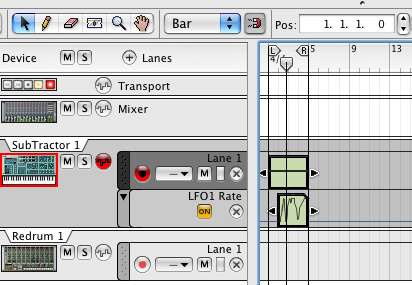
  1. Pick a knob/slider that you want to work with. (I'm going to pick the Rate knob in the Subtractor's LFO1 section)
  2. Right-click on the knob/slider and select Edit Remote Override Mapping.
  3. In the window that pops up, make sure that Control Surface is set to M-Audio Oxygen 8 and that there is a checkmark in the box next to Learn from Control Surface Input.
  4. Now move one of the knobs or wheels on the Oxygen 8. (I'm going to use the Modulation Wheel). You should see a blue meter in the Control Surface Activity section and the Control section will change to whatever knob/wheel you chose.
  5. Click OK.
  6. Now, when you move this knob/wheel on your keyboard, you should see the parameter move in Reason.
Please do the following:
  1. Open Reason and create a Subtractor.
  2. Change the settings to match the ones in the video. Pay attention to the Oscillators, Filters, Amp, and Mod sections. Also make sure that the
  3. Now find the LFO1 Rate knob and set up your keyboard so that you can control this parameter with the Oxygen 8. (See above)
  4. In Reason, draw or play a note (I recommend a low note) that goes from Bar 1-5.
  5. Play the note back and try adjusting the knob/wheel that you set up. Listen to how it affects it.
  6. When you are ready, hit Record and try moving the knob/wheel to get some cool sounds. You should see your performance get recorded into the Sequencer.
  7. If you don't like your performance, just delete the performance data and try again.
  8. Make a short (24-bar) beat that incorporates this sound.
  9. Save it as: your name_Mod Wheel and put it in the Student Work folder on the Shared Media folder.

Tuesday, March 23, 2010

{ADSR assignment (pt. 2)_Guitar Patch}


For the next part of this assignment, we are going to create our own unique guitar sounds by sampling a guitar and then using the filters and other devices to make them sound interesting. Then you're going to use this sound in the beat you started working on in the last class.

"Where are we going to get these samples?" you ask.
Easy - you're going to record yourself playing guitar!

Check it out...

Part 1 - Recording Guitar
Everyone is going to take a turn and come up to the Instructor station. Then you're going to do the following:
  1. Launch Pro Tools and create a new session called: your name_guitar sample
  2. Create 1 new Mono Audio Track.
  3. Plug the 1/4" cable into the guitar and an input on the Digi 003.
  4. IMPORTANT! Underneath the gain knob of the Input that you plugged into, find the button called Mic/DI. Press it so that the orange light is on. If you don't do this, you will not be able to hear any sound from the guitar.
  5. Record enable your audio track.
  6. Pluck some of the strings and adjust the Input level so that you're getting a good strong signal (but not clipping!).
  7. Now pick up the guitar and get comfortable. When you are ready, put your finger on the C note here:
  8. Take the pick in your other hand and practice plucking the string. Try to get a nice clean sound without hitting any of the other strings.
  9. When you are ready, hit Record on Pro Tools and record yourself playing C. Don't stress about playing it perfectly right away. Just keep playing it as many times as you want until you feel like you got a good take. BUT, when you play the note, let it ring all the way out before you play it again. We want to get a nice clean waveform with a natural Decay and Sustain.
  10. When you feel like you've got at least one good recording, hit stop.
  11. Save the session.
  12. Copy it to your folder on the Shared Media drive.
  13. Go back to your desk and copy the Pro Tools session to your own computer.

Part 2 - Editing your Guitar Sample
  1. Open your Pro Tools session.
  2. Listen back to your performance and find the single best note in your recording.
  3. Edit this note and Split it (Command E) into its own region. Be sure to zoom in and make clean cuts at the zero line crossing!
  4. Use the Grabber Tool and click on the note region to highlight it.
  5. Bounce the region out as an audio file. (File>Bounce to>Disk).
  6. In the Bounce window, change the Format to Mono (summed) and click Bounce.
  7. In the Save Window, change the file name to: your name_guitar_C
  8. Make a mental note of WHERE you are saving your file and hit Save.
  9. If you want to export any of your other notes, go back and repeat Steps 2-8. Don't forget to use a different filename!
  10. Save your session and quit Pro Tools.

Part 3 - Sculpting Your Guitar Sample
  1. Launch Reason and open the song you started last time (your name_ADSR style).
  2. Create an NN19 Digital Sampler.
  3. Right-click on the NN19 and click on Initialize Patch to clear out the preset instrument.
  4. Click on the Browse Sample button.
  5. Find your guitar sample and load it into the NN19.
  6. Play some notes and listen to how it sounds.
  7. Now you can get into shaping it to sound the way you want.
  8. First start by adjusting the Amp ADSR settings. Do you want the sound to be shorter? Lower the Decay and Sustain time. Do you want it to start with a fade in? Raise the Attack time. Do you want the notes to go on after you let go of the key? Raise the Release time.
  9. Next, move on to the Filters. First, pick which kind of filter you want to mess with and click the red light next to it. In case you forgot...BP = Band Pass, LP = Low Pass, HP = High Pass, Notch = Notch. Try first raising the FREQ slider to get it where you want, and then adjust the RES slider to really bring the effect out. Lastly, if you want to, try messing with the ADSR settings.
  10. Now if you really want to get some weirdness going on, try messing with the LFO section. I won't get too deep into this today, but basically, the LFO makes automatic adjustments to either the amplitude (loudness) of the sound, the filters, or the Panning (left-to-right movement). Try adjusting the settings and see what it does! Note: in order to hear the LFO working, you will need to turn up the Amount knob!
  11. Lastly, try connecting different FX devices to the NN19. Specifically, I suggest that you try the Scream Distortion or the Delay devices. Or both. Go nuts!
  12. Complete a beat that incorporates your guitar sound.
  13. Be sure to do File>Save Settings and check off all the samples.
  14. Save this as: your name_ADSR style.
  15. Put it in the Shared Media folder.

Thursday, March 18, 2010

{ADSR assignment (pt.1)_Making a Kick Drum w/ the Subtractor}

Now you're going to use the Subtractor to create an original kick drum sound. To do this, you will be working with a few different parts of the Subtractor, including the Oscillators, Filters, and ADSR envelopes. I don't want to overwhelm you with too much info before you get started with this, but here are a couple things that might help you make sense of what you're working with:

Oscillators
These are the heart of the Subtractor, meaning this is the section where the sounds are originally generated from. You have two Oscillators to work with, and you can change the basic types of sound waves to create different combinations of sounds to work with. Note that if you want to use both Oscillators, the light next to OSC 2 needs to be lit up!

Filters
We already worked a bit with filters last week. Remember, they let you remove different areas of the frequency spectrum (i.e. highs, lows, mids, etc.) We've got four basic types of filters to choose from, and they all reject different parts of the frequency spectrum. They are:
  • Low Pass (LP)
  • High Pass (HP)
  • Band Pass (BP)
  • Band Stop (aka "Notch")
Remember, the key word here is "pass"; what frequencies are being allowed to pass through the filter. In a Low Pass filter, the "lows" are being allowed to "pass". In a High Pass filter, the "highs" are being allowed to "pass". You can adjust the Cutoff frequency (the point where the filter starts working) by dragging the slider called Freq. So, in Subtractor, you can select whichever filter you want to work with by clicking on the red dot next to it.

ADSR
As we just discussed, ADSR controls how a sound evolves over time. However, you will notice, that there are actually 3 ADSR envelopes in the Subtractor: one for the Amplitude (the actual sound), one for the Filters, and one called Mod. I don't want to overwhelm you, but let's just say they all work in the same way, adjusting how quickly something kicks in and cuts off. For example, with the Filters, you might have a slow Attack time on the filters that doesn't kick in until after the sound has already started playing. You can get some really interesting and original sounds by messing with these.


Let's jump into this. Please do the following:
  1. Open Reason and start a new session.
  2. Create a Subtractor.
  3. Right click on the folder button to Initialize the patch.
  4. On Osc 1, select the sine wave. Set the Octave ("Oct") to 1.
  5. Make sure the Keyboard Tracking light is off.
  6. Find the Phase knob under Osc 1. Now find the three red lights to the right of the knob and click on the one next to the "-".
  7. Turn the Phase knob all the way to the right. (This is basically going to thicken up the sound.)
  8. Turn on the Noise generator and set the Decay to 40, Color to 0, and Level to 98.
  9. Go to the Filter 1 section and set the Frequency Slider to 64. Select the filter called LP12 by clicking the light next to its name.
  10. Now go to the Filter Envelope section and set A=0, D=40, S=0, and R=38. Turn the Amount knob to 65.
  11. Go to the Amp Envelope section and set A=0, D=34, S=0, R=40.
  12. Go to the Mod Envelope section and set A=0, D=36, S=0, R=30. Set the Amount knob to 70. Make sure that the Envelope Destination is Osc1.
  13. And you're pretty much done. Click on the Save Patch button and save this to your folder as "your name_My Kick.zyp".
  14. Open your BAVC gmail account and email me (crunde@bavc.org) your patch as an attachment.
  15. Now listen closely to this sound. Is there anything you'd like to change about it? What section of the Subtractor do you think you can adjust to get it to sound the way you want? Make any changes you feel are necessary and save it again.
  16. Start working on a song that uses your kick drum. Save it as: your name_ADSR style

Fundamentals of Sound (pt. 3)_Amplitude Envelope

In the last two classes, we've been learning about the basic aspects of sound. So far, we have mainly been focusing on frequency and training our ears to identify specific frequencies. Today let's talk a bit about another major part of sound: amplitude! (Related to, but not to be confused with attitude.)

We already know that amplitude basically refers to loudness, right? But when you hear a sound, does it usually have the same amount of loudness throughout it? Of course, it depends on the sound - a long, steady sound like a motor running might stay at a consistent level - but usually, sounds change in amplitude throughout their duration.

For example, let's look at this waveform of an 808 snare sound:

In this picture we can clearly see how the sound quickly goes from nothing (silence) to its highest amplitude, then falls off, and then gradually trails off.

This whole process is what is called the envelope of the sound. The envelope describes the way the amplitude evolves over time. Every sound has its own unique envelope and this is partly what makes it sound the way it does. For the most part, natural sounds tend to follow this same basic pattern of

silence -> highest amplitude -> getting quieter -> trailing off

Here is another waveform of an 808 kick drum:

Now we know that a kick drum sound different from a snare, but can you see how, even though they look somewhat different, they both have that same basic shape? Here's another pic of a guitar:


ADSR
So the more specific term for describing the envelope of a sound is ADSR. This stands for Attack, Decay, Sustain, Release. Briefly:

Attack - the rise of the amplitude from the start of the sound up to the highest level.
Decay - the drop from the highest amplitude down to the average level of the sound
Sustain - the average level of the sound
Release - the fade out from the average level of the sound down to silence; on a synthesizer, this is how quickly the sound cuts off when you let go of the key

Here is a common diagram of an ADSR Envelope:
And here is what ADSR looks like on an actual waveform:

Every sound has its own natural ADSR envelope, but with digital tools like samplers and synthesizers, you can actually manipulate these parameters and modify or completely change sounds. In fact, you have been looking at and working with ADSR envelopes for months now. Can you think of where? Here's one example:
Here's another:
What do you think the Amp stands for?

So today we're going to work on a couple of projects using the ADSR envelopes on the devices in Reason to create some original sounds.